Mirai Walkthrough - HTB Easy | IoT Default Credentials & USB Data Recovery
Complete walkthrough of Mirai from Hack The Box. Covers exploiting misconfigured IoT devices using default Raspberry Pi credentials, gaining root access through Pi-hole admin panel, and recovering deleted files from USB storage using forensic techniques.

Overview
Mirai demonstrates one of the fastest-growing attack vectors in modern times; improperly configured IoT devices. This attack vector is constantly on the rise as more and more IoT devices are being created and deployed around the globe, and is actively being exploited by a wide variety of botnets. Internal IoT devices are also being used for long-term persistence by malicious actors.
External Enumeration
Nmap
Let’s start with an nmap scan.
1
2
3
4
5
6
7
8
9
10
11
12
13
14
15
16
17
18
19
20
21
22
23
24
25
26
27
28
29
30
31
32
33
34
35
36
37
38
39
40
41
42
43
44
45
┌─[dua2z3rr@parrot]─[~]
└──╼ $nmap 10.10.10.48 -vv -p-
<SNIP>
PORT      STATE SERVICE REASON
22/tcp    open  ssh     syn-ack
53/tcp    open  domain  syn-ack
80/tcp    open  http    syn-ack
1499/tcp  open  fhc     syn-ack
32400/tcp open  plex    syn-ack
32469/tcp open  unknown syn-ack

<SNIP>

┌─[dua2z3rr@parrot]─[~]
└──╼ $nmap 10.10.10.48 -vv -p22,53,80,1499,32400,32469 -sC -sV
<SNIP>
PORT      STATE SERVICE REASON  VERSION
22/tcp    open  ssh     syn-ack OpenSSH 6.7p1 Debian 5+deb8u3 (protocol 2.0)
| ssh-hostkey:
|   1024 aa:ef:5c:e0:8e:86:97:82:47:ff:4a:e5:40:18:90:c5 (DSA)
| ssh-dss AAAAB3NzaC1kc3MAAACBAJpzaaGcmwdVrkG//X5kr6m9em2hEu3SianCnerFwTGHgUHrRpR6iocVhd8gN21TPNTwFF47q8nUitupMBnvImwAs8NcjLVclPSdFJSWwTxbaBiXOqyjV5BcKty+s2N8I9neI2coRBtZDUwUiF/1gUAZIimeKOj2x39kcBpcpM6ZAAAAFQDwL9La/FPu1rEutE8yfdIgxTDDNQAAAIBJbfYW/IeOFHPiKBzHWiM8JTjhPCcvjIkNjKMMdS6uo00/JQH4VUUTscc/LTvYmQeLAyc7GYQ/AcLgoYFHm8hDgFVN2D4BQ7yGQT9dU4GAOp4/H1wHPKlAiBuDQMsyEk2s2J+60Rt+hUKCZfnxPOoD9l+VEWfZQYCTOBi3gOAotgAAAIBd6OWkakYL2e132lg6Z02202PIq9zvAx3tfViuU9CGStiIW4eH4qrhSMiUKrhbNeCzvdcw6pRWK41+vDiQrhV12/w6JSowf9KHxvoprAGiEg7GjyvidBr9Mzv1WajlU9BQO0Nc7poV2UzyMwLYLqzdjBJT28WUs3qYTxanaUrV9g==
|   2048 e8:c1:9d:c5:43:ab:fe:61:23:3b:d7:e4:af:9b:74:18 (RSA)
| ssh-rsa AAAAB3NzaC1yc2EAAAADAQABAAABAQCpSoRAKB+cPR8bChDdajCIpf4p1zHfZyu2xnIkqRAgm6Dws2zcy+VAZriPDRUrht10GfsBLZtp/1PZpkUd2b1PKvN2YIg4SDtpvTrdwAM2uCgUrZdKRoFa+nd8REgkTg8JRYkSGQ/RxBZzb06JZhRSvLABFve3rEPVdwTf4mzzNuryV4DNctrAojjP4Sq7Msc24poQRG9AkeyS1h4zrZMbB0DQaKoyY3pss5FWJ+qa83XNsqjnKlKhSbjH17pBFhlfo/6bGkIE68vS5CQi9Phygke6/a39EP2pJp6WzT5KI3Yosex3Br85kbh/J8CVf4EDIRs5qismW+AZLeJUJHrj
|   256 b6:a0:78:38:d0:c8:10:94:8b:44:b2:ea:a0:17:42:2b (ECDSA)
| ecdsa-sha2-nistp256 AAAAE2VjZHNhLXNoYTItbmlzdHAyNTYAAAAIbmlzdHAyNTYAAABBBCl89gWp+rA+2SLZzt3r7x+9sXFOCy9g3C9Yk1S21hT/VOmlqYys1fbAvqwoVvkpRvHRzbd5CxViOVih0TeW/bM=
|   256 4d:68:40:f7:20:c4:e5:52:80:7a:44:38:b8:a2:a7:52 (ED25519)
|_ssh-ed25519 AAAAC3NzaC1lZDI1NTE5AAAAILvYtCvO/UREAhODuSsm7liSb9SZ8gLoZtn7P46SIDZL
53/tcp    open  domain  syn-ack dnsmasq 2.76
| dns-nsid:
|_  bind.version: dnsmasq-2.76
80/tcp    open  http    syn-ack lighttpd 1.4.35
|_http-title: Site doesn't have a title (text/html; charset=UTF-8).
| http-methods:
|_  Supported Methods: OPTIONS GET HEAD POST
|_http-server-header: lighttpd/1.4.35
1499/tcp  open  upnp    syn-ack Platinum UPnP 1.0.5.13 (UPnP/1.0 DLNADOC/1.50)
32400/tcp open  http    syn-ack Plex Media Server httpd
|_http-cors: HEAD GET POST PUT DELETE OPTIONS
|_http-favicon: Plex
| http-auth:
| HTTP/1.1 401 Unauthorized\x0D
|_  Server returned status 401 but no WWW-Authenticate header.
|_http-title: Unauthorized
32469/tcp open  upnp    syn-ack Platinum UPnP 1.0.5.13 (UPnP/1.0 DLNADOC/1.50)
Service Info: OS: Linux; CPE: cpe:/o:linux:linux_kernel
Key findings:
- Port 22: SSH
- Port 53: DNS
- Port 80: HTTP, running lighttpd 1.4.35
- Port 1499: UPnP (Universal Plug and Play), version Platinum UPnP 1.0.5.13
- Port 32400: HTTP, hosting Plex Media Server
- Port 32469: UPnP with the same version as 1499
Web Application Analysis
HTTP Service (Port 80)
When attempting to access port 80, we receive a 404 error. Let’s try visiting port 32400 instead.
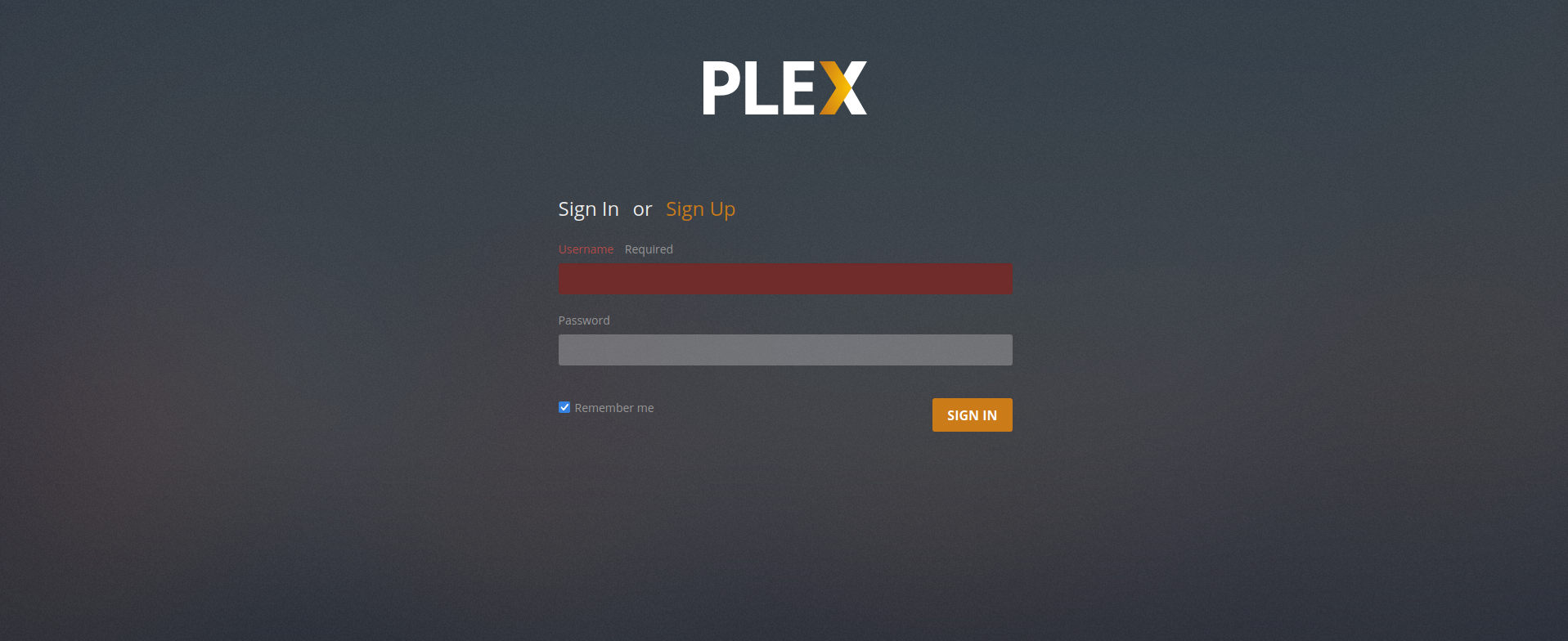
Clicking Sign Up to explore further.
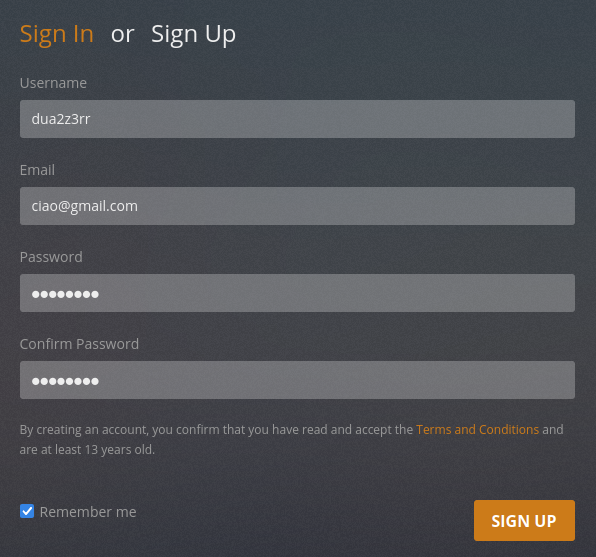
Nothing particularly interesting here.
Directory Fuzzing
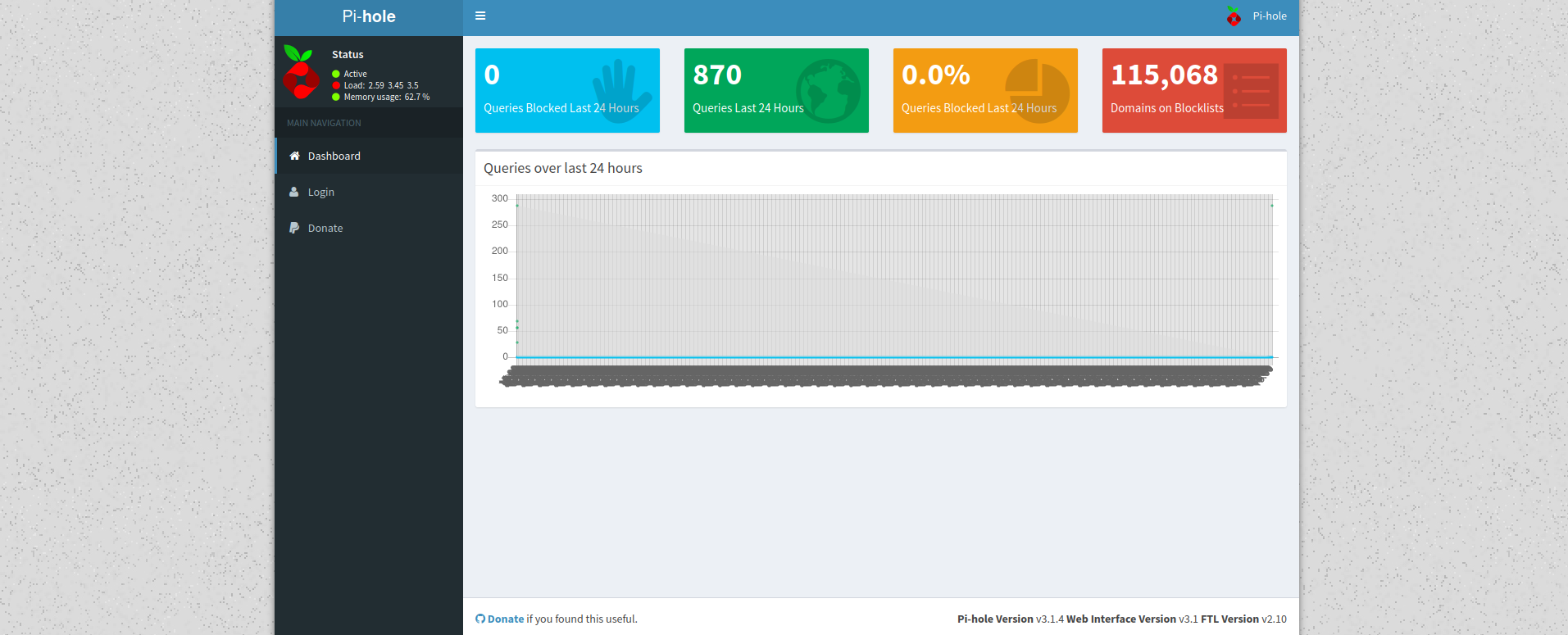
Adding mirai.htb to /etc/hosts and fuzzing port 80 reveals the admin directory:
1
2
3
4
5
6
7
8
9
10
11
12
13
14
15
16
17
18
19
20
21
22
23
24
25
26
┌─[dua2z3rr@parrot]─[~]
└──╼ $ffuf -w SecLists/Discovery/Web-Content/DirBuster-2007_directory-list-2.3-big.txt:FUZZ -u http://mirai.htb:80/FUZZ -ic -fw 400

        /'___\  /'___\           /'___\
       /\ \__/ /\ \__/  __  __  /\ \__/
       \ \ ,__\\ \ ,__\/\ \/\ \ \ \ ,__\
        \ \ \_/ \ \ \_/\ \ \_\ \ \ \ \_/
         \ \_\   \ \_\  \ \____/  \ \_\
          \/_/    \/_/   \/___/    \/_/

       v2.1.0-dev
________________________________________________

 :: Method           : GET
 :: URL              : http://mirai.htb:80/FUZZ
 :: Wordlist         : FUZZ: /home/dua2z3rr/SecLists/Discovery/Web-Content/DirBuster-2007_directory-list-2.3-big.txt
 :: Follow redirects : false
 :: Calibration      : false
 :: Timeout          : 10
 :: Threads          : 40
 :: Matcher          : Response status: 200-299,301,302,307,401,403,405,500
 :: Filter           : Response words: 400
________________________________________________

admin                   [Status: 301, Size: 0, Words: 1, Lines: 1, Duration: 46ms]
versions                [Status: 200, Size: 18, Words: 1, Lines: 1, Duration: 64ms]
Accessing port 80 now reveals:
Finding Default Credentials
I discovered a comment on a Raspberry Pi help page:
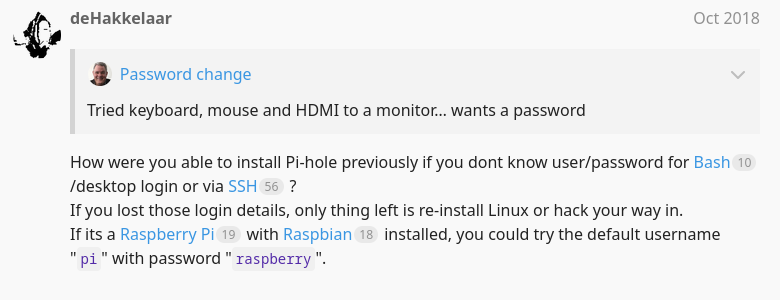
Default credentials:
- Username:
pi - Password:
raspberry
Initial Access
Login Page
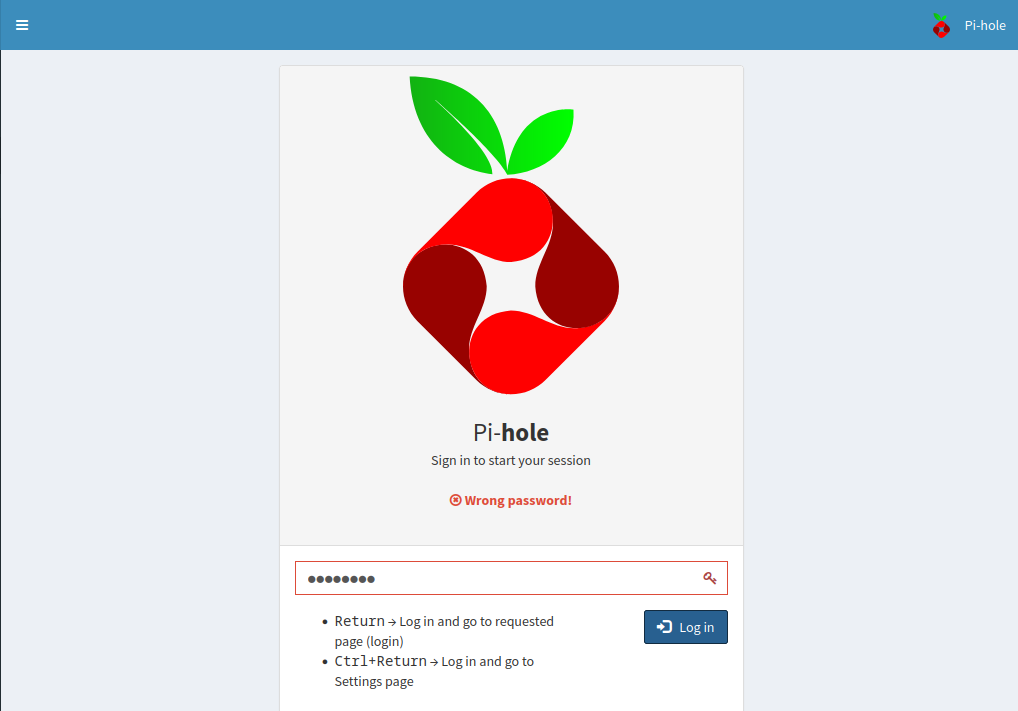
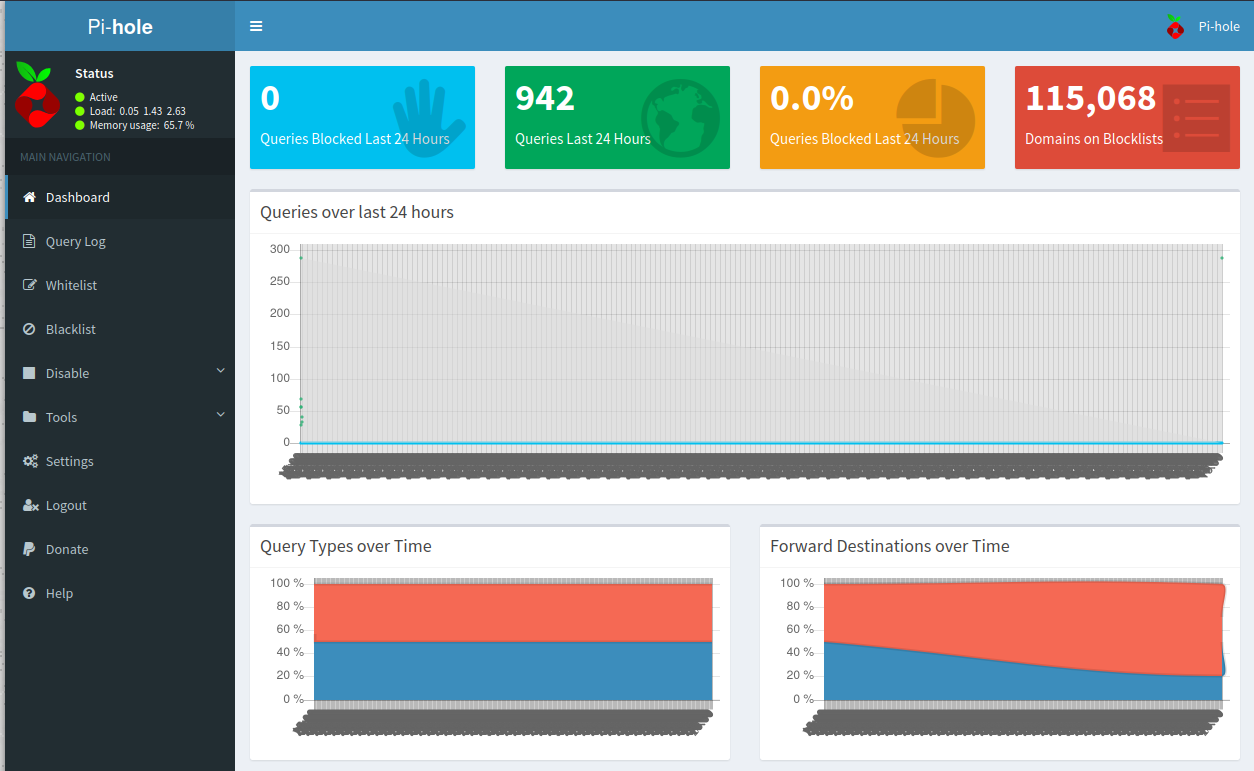
We can immediately log in via SSH using the default credentials we just found, then change the Pi-hole login page password.
1
root@raspberrypi:/home/pi# sudo pihole -a -p password
We can grab the user flag from pi’s Desktop.
Privilege Escalation
Internal Enumeration
Since we already noticed the UPnP ports earlier, I navigate to the media directory and find this text file:
1
2
root@raspberrypi:~# cat root.txt
I lost my original root.txt! I think I may have a backup on my USB stick...
Let’s check the USB drive.
1
2
3
4
5
root@raspberrypi:/media/usbstick# cat damnit.txt
Damnit! Sorry man I accidentally deleted your files off the USB stick.
Do you know if there is any way to get them back?

-James
We need to find a tool to recover the deleted root flag.
USB Forensics
Recovering Deleted Files
Using strings to extract data from the USB device:
1
2
3
4
5
6
7
8
9
10
11
12
13
14
15
16
17
18
19
20
21
22
23
root@raspberrypi:/media/usbstick/lost+found# sudo strings /dev/sdb
>r &
/media/usbstick
lost+found
root.txt
damnit.txt
>r &
>r &
/media/usbstick
lost+found
root.txt
damnit.txt
>r &
/media/usbstick
2]8^
lost+found
root.txt
damnit.txt
>r &
<ROOT FLAG>
Damnit! Sorry man I accidentally deleted your files off the USB stick.
Do you know if there is any way to get them back?
-James
Root flag obtained. Box completed.
Reflections
What Surprised Me
Most of the time, someone sets up a Pi-hole for network-wide ad blocking, uses the default credentials “just for now,” and then never changes them. This is a perfect example of the “set it and forget it” mentality that plagues IoT security.
Alternative Approaches
The USB forensics portion could also have been approached differently using tools like:
photorecfor file carvingtestdiskfor partition recoveryddcombined withgrepto search the raw disk image
Open Question
This box raises an important question about IoT security in enterprise environments: Should there be industry regulations requiring manufacturers to force password changes on first boot?
Completed this box? What was your approach to finding the root flag? Leave a comment down below!